
This guide explains the Payments – Xero Integration feature in Metanow CRM. It syncs contacts and invoices between Metanow CRM and Xero, with tax mapping, to reduce manual work and keep your data consistent across both systems.
Contents
- Overview of the Xero integration
- Key benefits
- How to set up the Xero integration
- How to view all “Chart of Accounts” in the integration
- How it works
- Frequently asked questions
1. Overview of the Xero integration
The Xero integration lets you one-way sync invoices from Metanow CRM to Xero. Contacts are first imported from Xero into Metanow CRM, so invoices created in Metanow CRM map to the correct Xero contact when they are synced. If a matching contact is not found, a new contact is created in Xero during the invoice sync.
What syncs today
| Contacts | Imported from Xero to Metanow CRM for mapping. A new Xero contact is created on invoice sync if no match exists. |
| Invoices | Any invoice created in Metanow CRM is created in Xero automatically. Line items and discounts are included. Products and items are not created in Xero; line items stay on the invoice only. |
| Taxes | If the mapped tax already exists in Xero, it is applied. If not, a new tax rate is created and sent with the invoice. |
| Currencies | The invoice currency is passed to Xero. New currencies are added to the organisation if they do not already exist. Make sure your Xero plan supports multi-currency. |
| Status | As the status of an invoice changes, the status is synced to Xero, for example Sent, Partially Paid or Void. |
What does not sync
Receipts: receipt syncing is not included in this integration. It will be available soon.
Sync overview
| Xero | Metanow CRM | |
|---|---|---|
| → Contacts imported (Xero to Metanow CRM) ← Invoices and statuses (Metanow CRM to Xero) |
|
2. Key benefits
- New or updated contacts are kept in sync, so records stay accurate.
- Invoices move from Metanow CRM to Xero with up-to-date payment statuses and tax details.
- Precise tax mapping supports compliance, including multi-component tax structures.
- Accounts are filtered to show only those with payments enabled, keeping data relevant and organised.
3. How to set up the Xero integration
Connecting your Metanow CRM sub-account to Xero ensures financial data flows between the two platforms. Follow these steps.
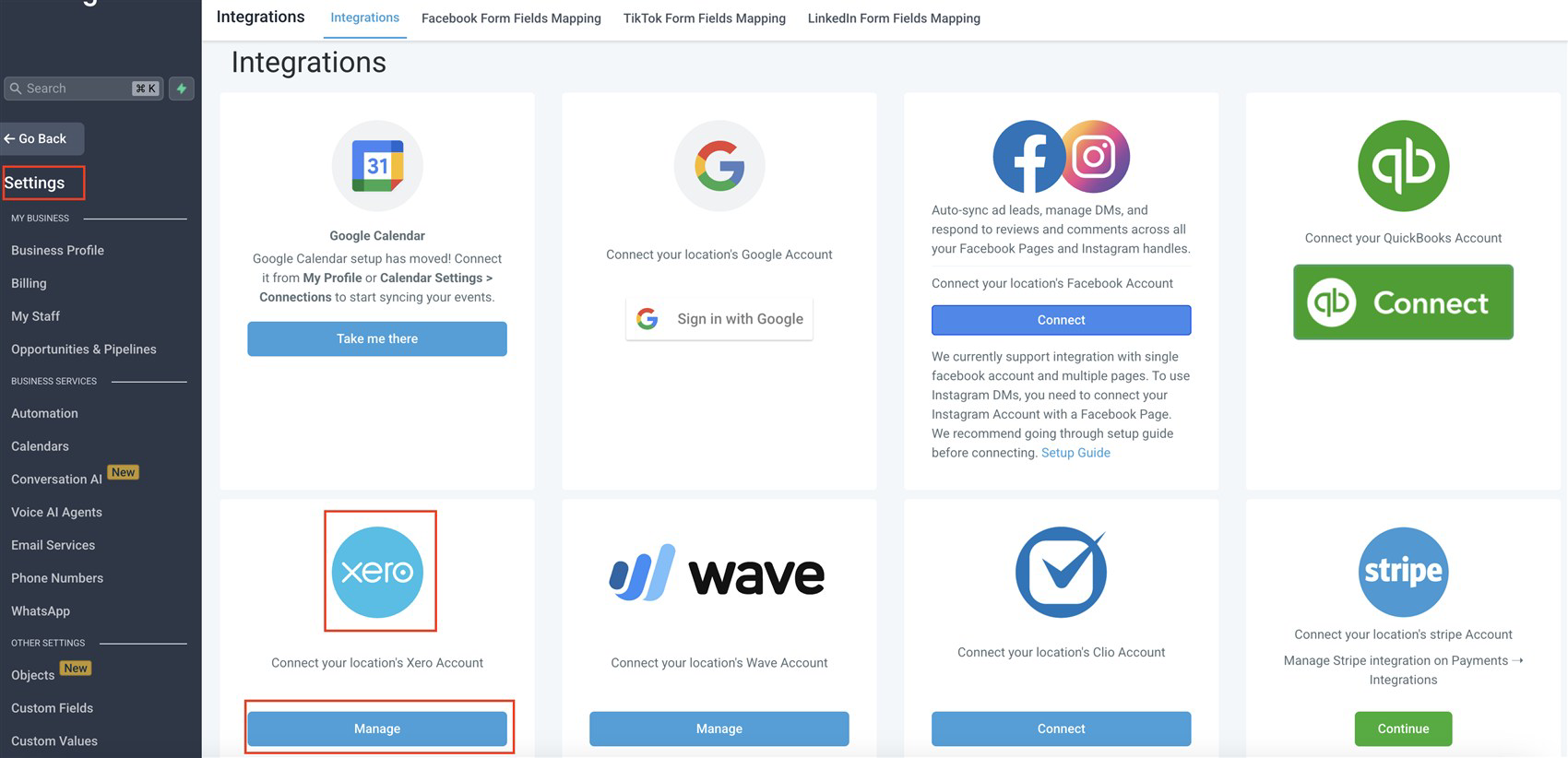
1. Navigate to Xero under Integrations
In the left navigation, click Settings → Integrations → Xero.
2. Choose Xero
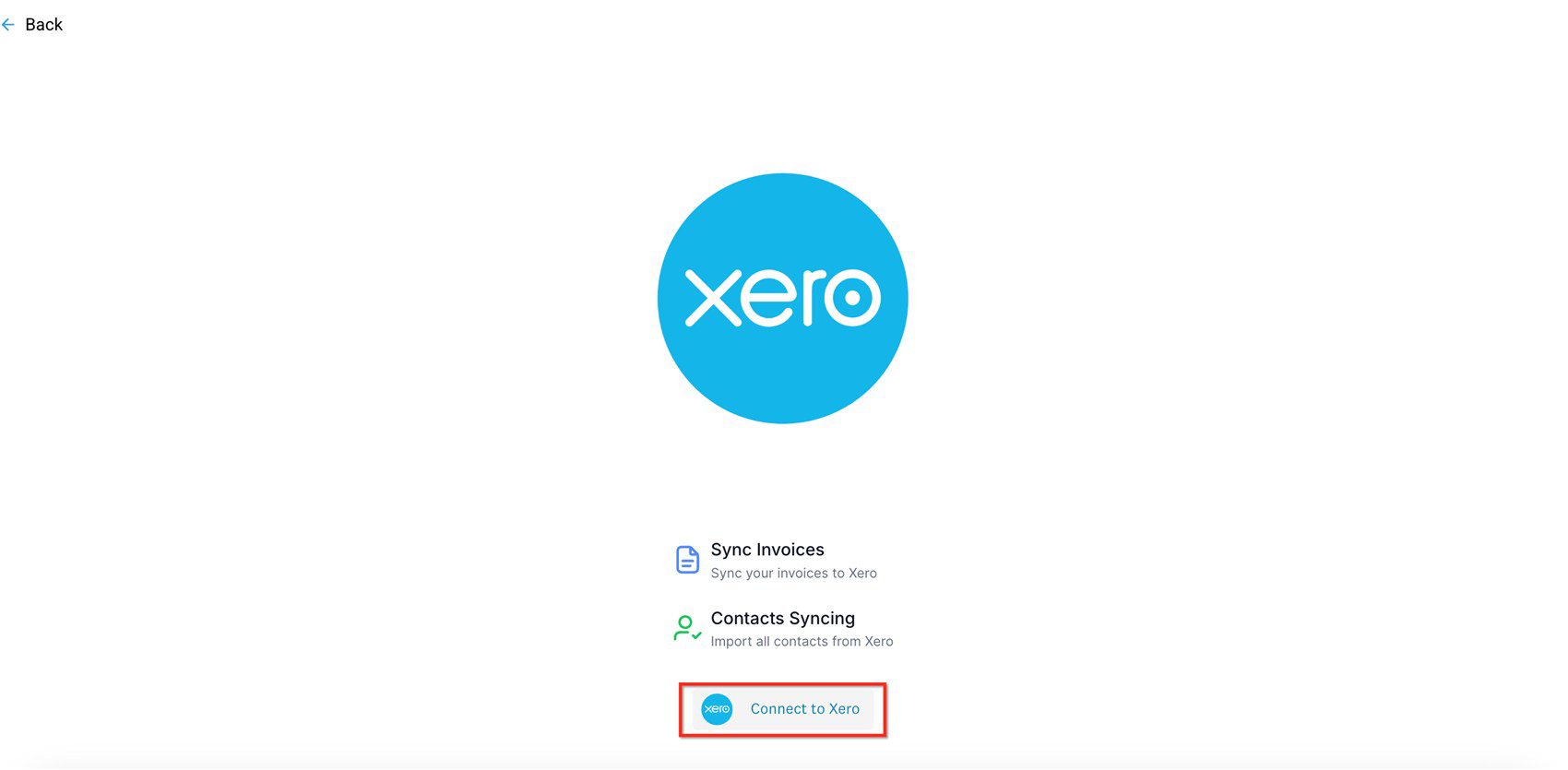
In the Integrations list, click the Xero tile, then select Connect. This opens a secure Xero window for authorisation.
3. Sign in and authorise
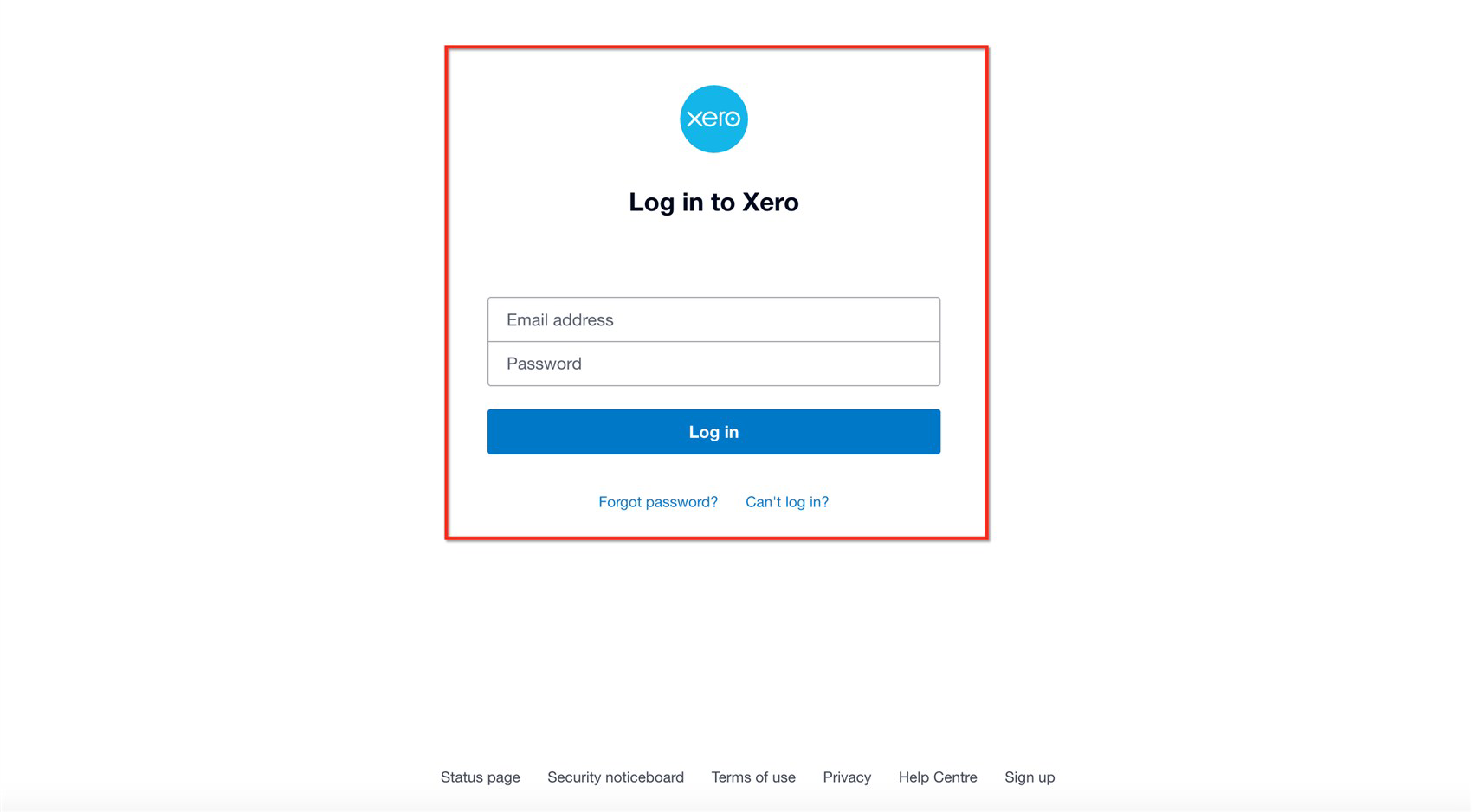
Sign in to Xero if prompted, select the Xero organisation you want to connect, and click Allow access. Metanow CRM requests standard scopes to read contacts and settings and to create invoicing transactions.
TIP
Once connected, go back to Metanow CRM. You will see the connected organisation name and the connection status under INTEGRATIONS → XERO.
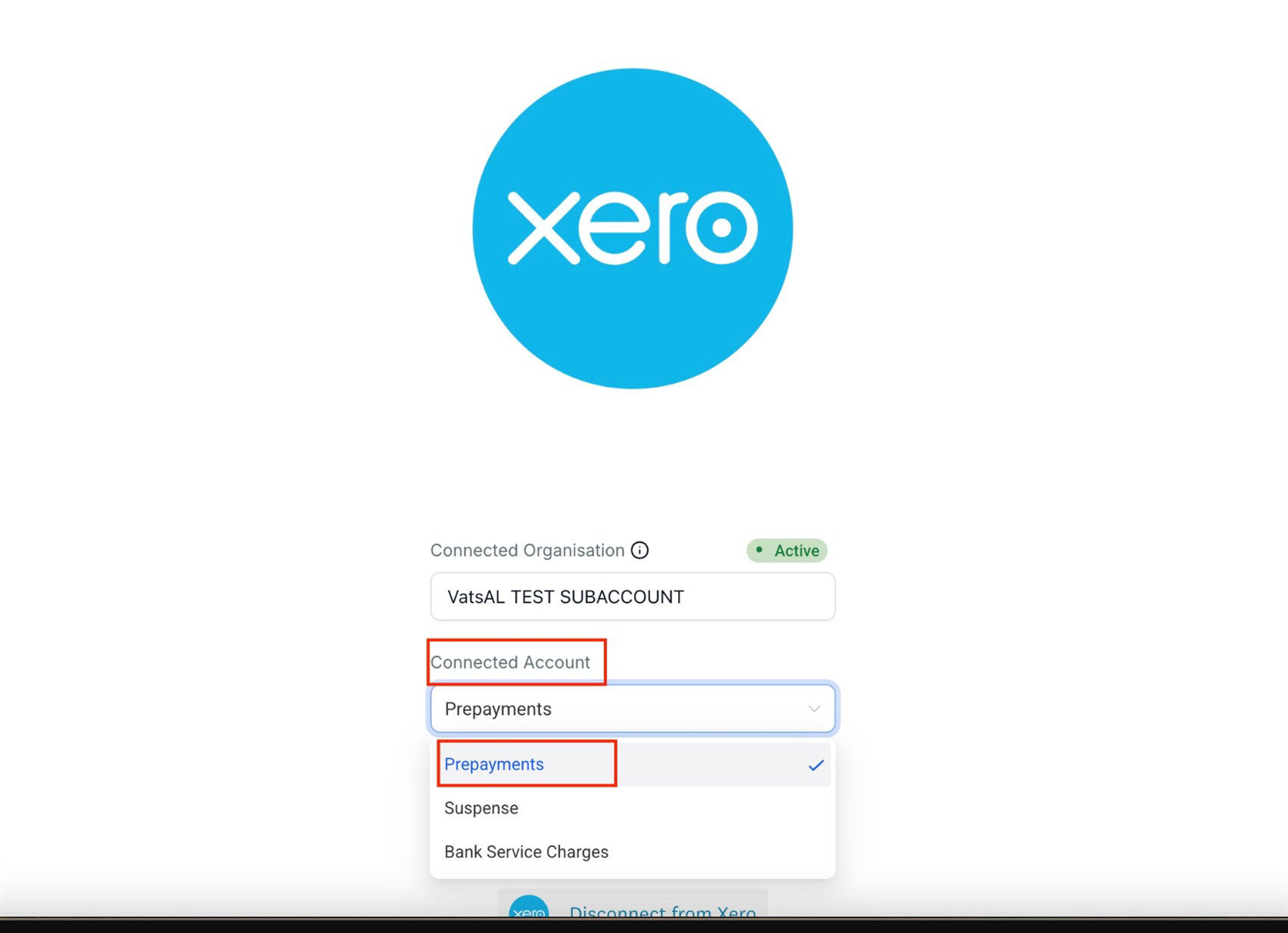
4. Choose a default account for invoices
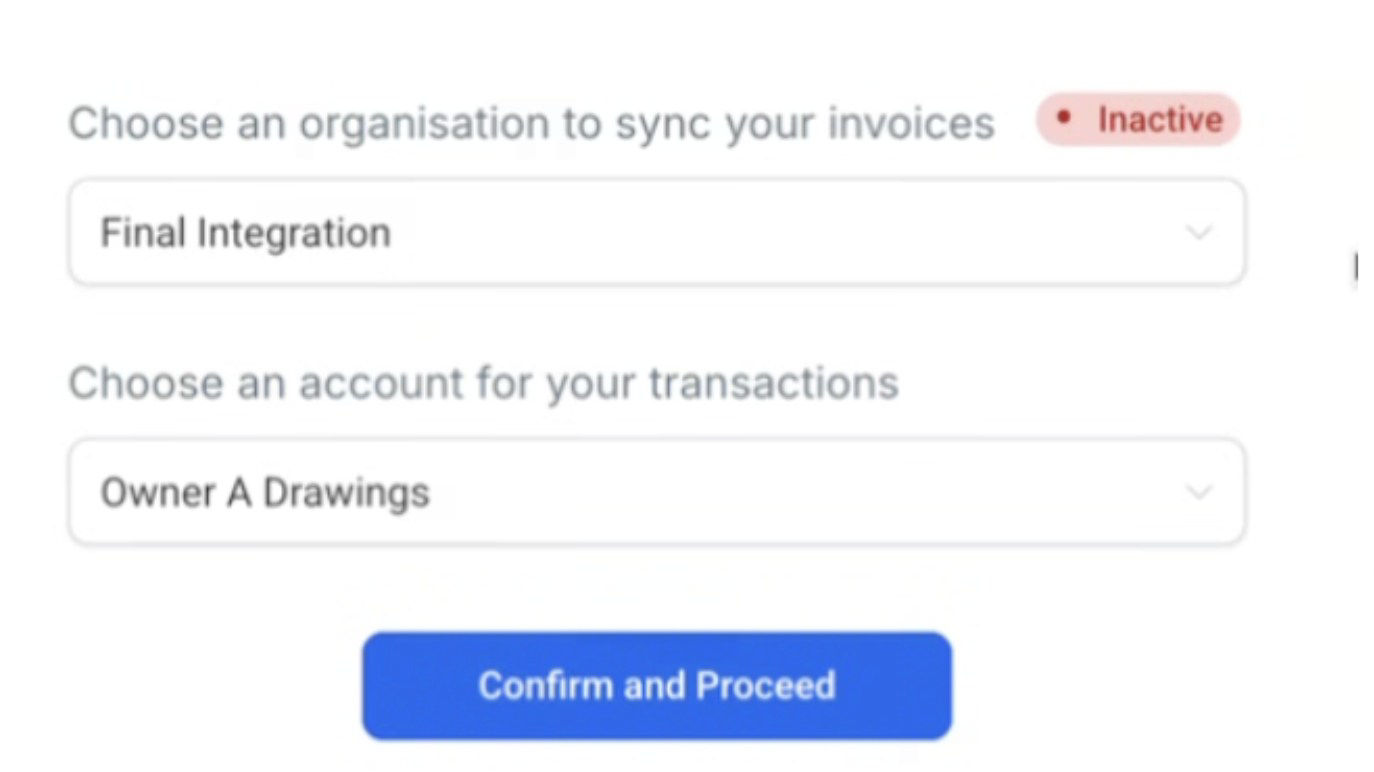
In the Xero settings pane inside Metanow CRM, select the account and organisation you want to use when posting invoices.
4. How to view all “Chart of Accounts” in the integration
If you cannot see your Chart of Accounts in Metanow CRM after connecting with Xero, follow these steps to enable it.
1. Go to Settings in Xero
From your Xero dashboard, select your organisation. Click Settings from the dropdown menu.
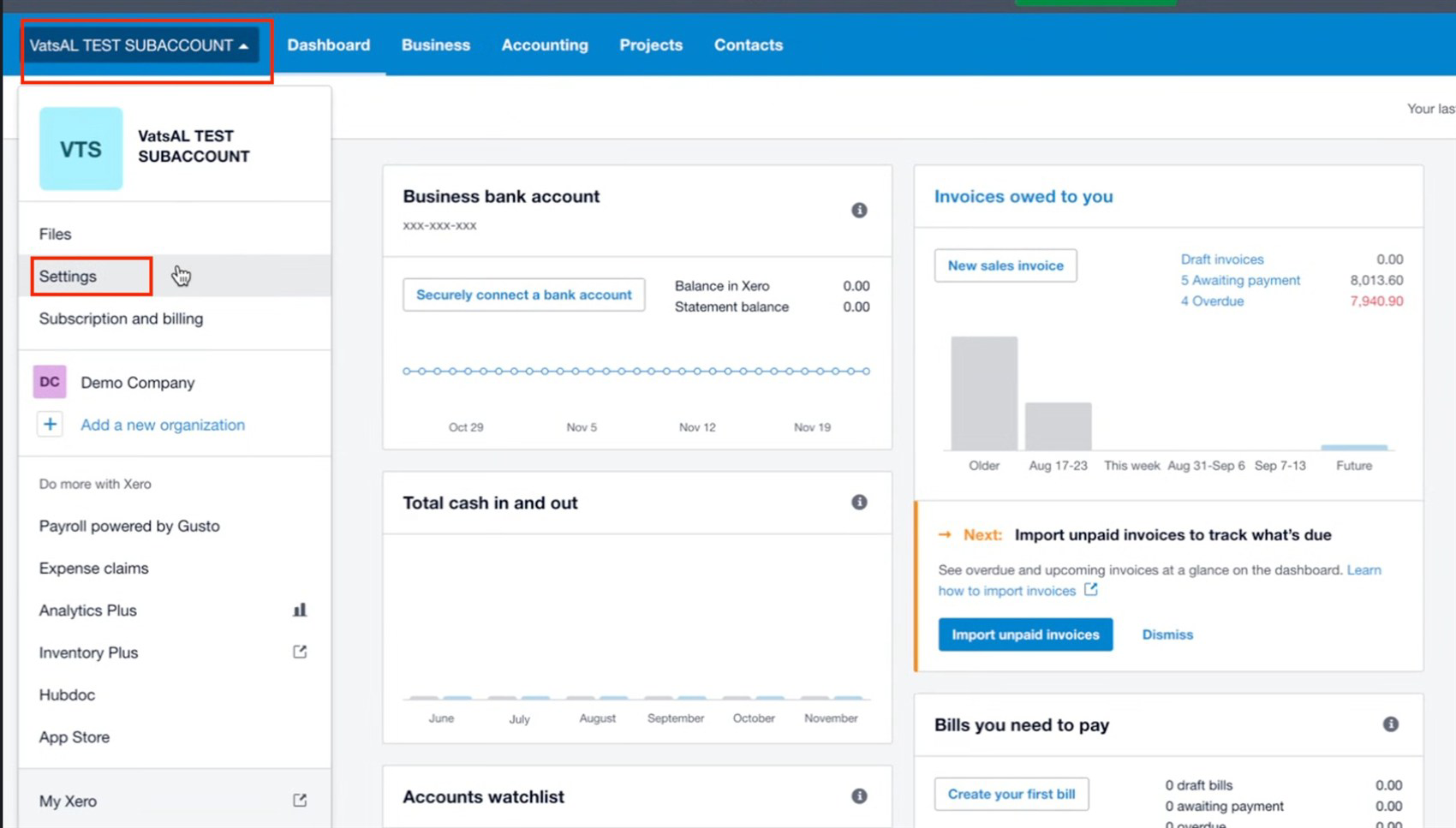
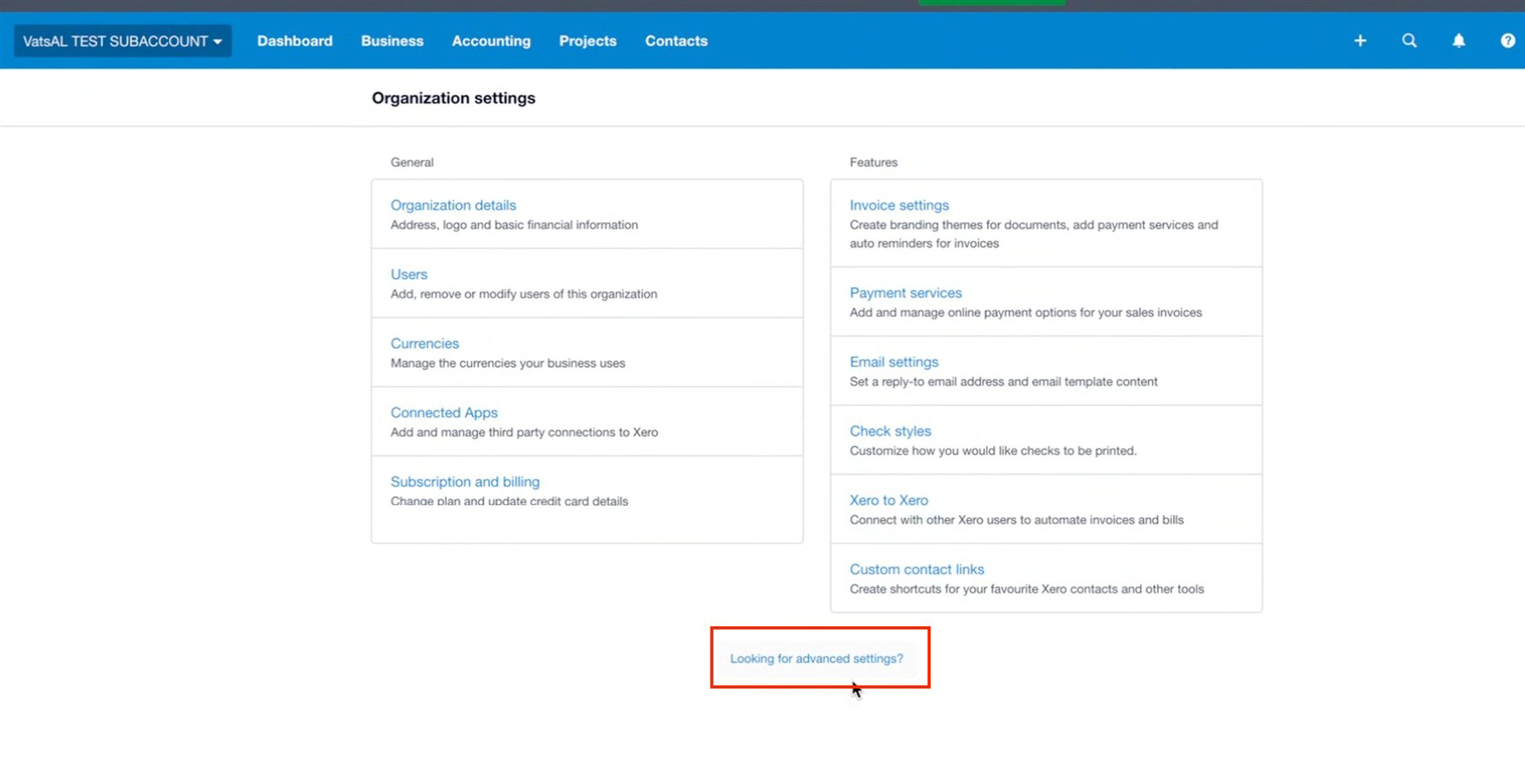
2. Open Advanced Settings
In Organisation settings, scroll down and click Looking for advanced settings?
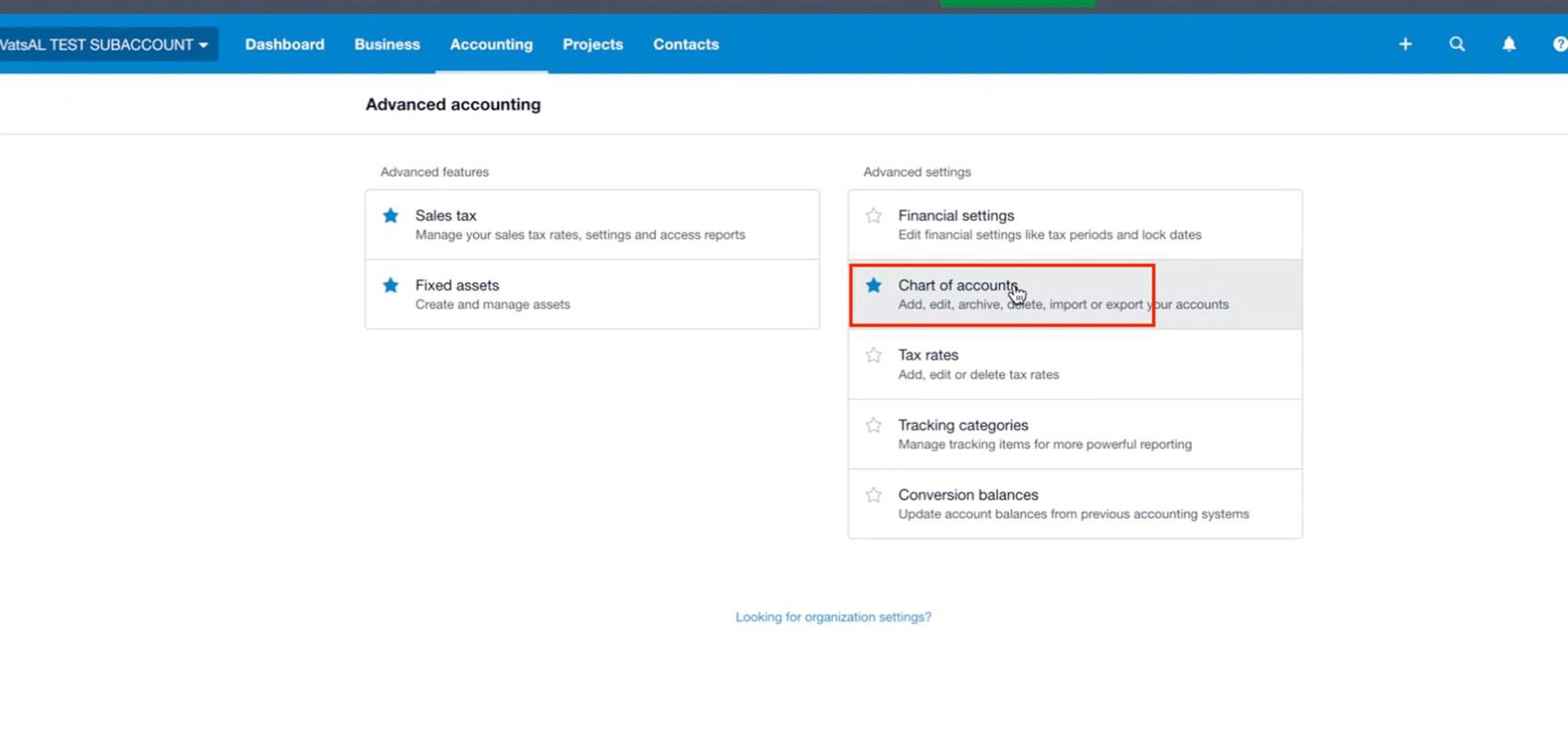
3. Access Chart of Accounts
Under Advanced Accounting, click Chart of accounts.
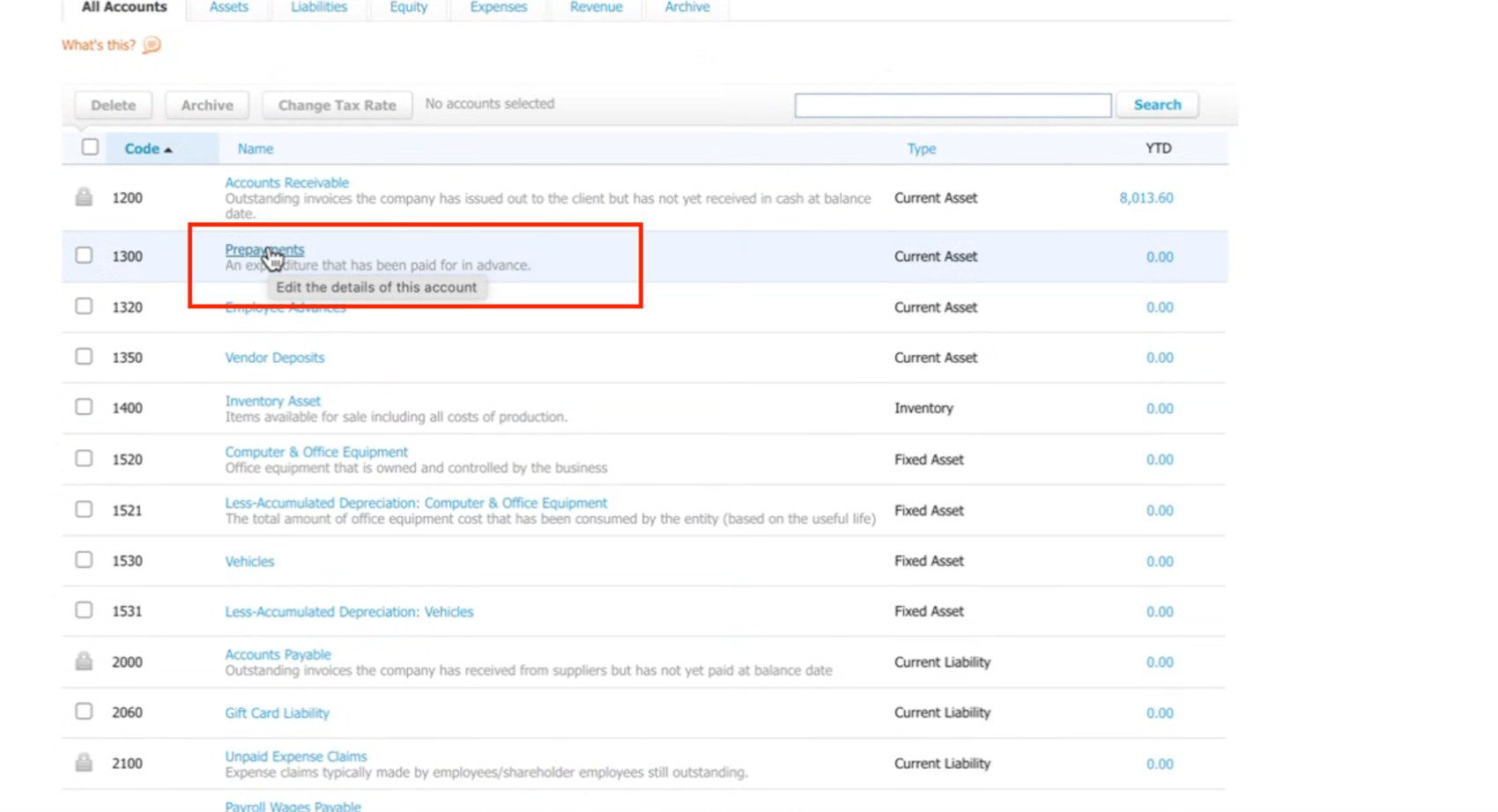
4. Select the relevant account
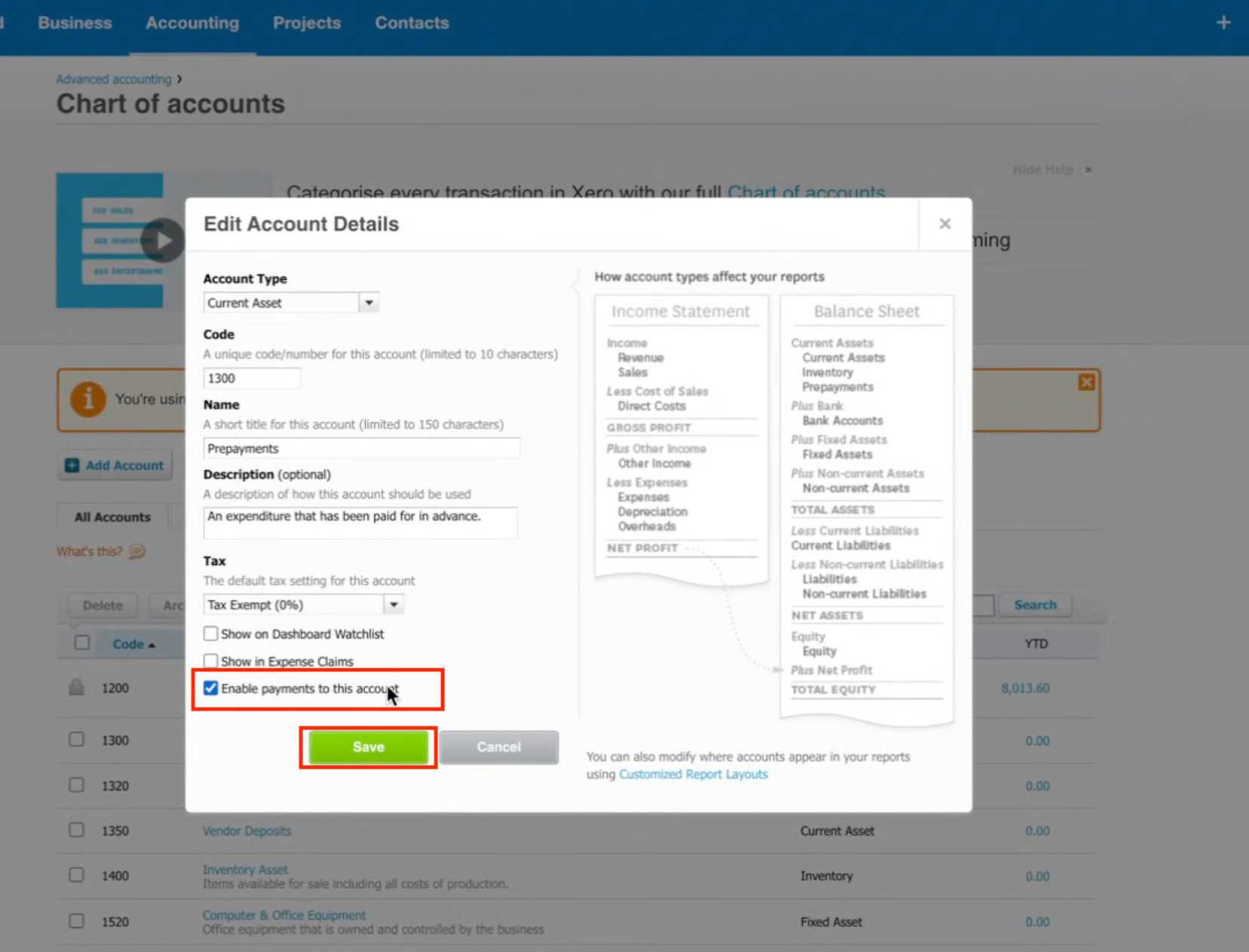
From the list of accounts, choose the account you want to connect (for example, Prepayments). Click it to edit the account details.
5. Enable payments for the account
In the edit window, tick Enable payments to this account, then click Save.
6. Connect to Metanow CRM
Go back to the Xero integration in Metanow CRM. Under Connected Account, select the account you just enabled (for example, Prepayments).
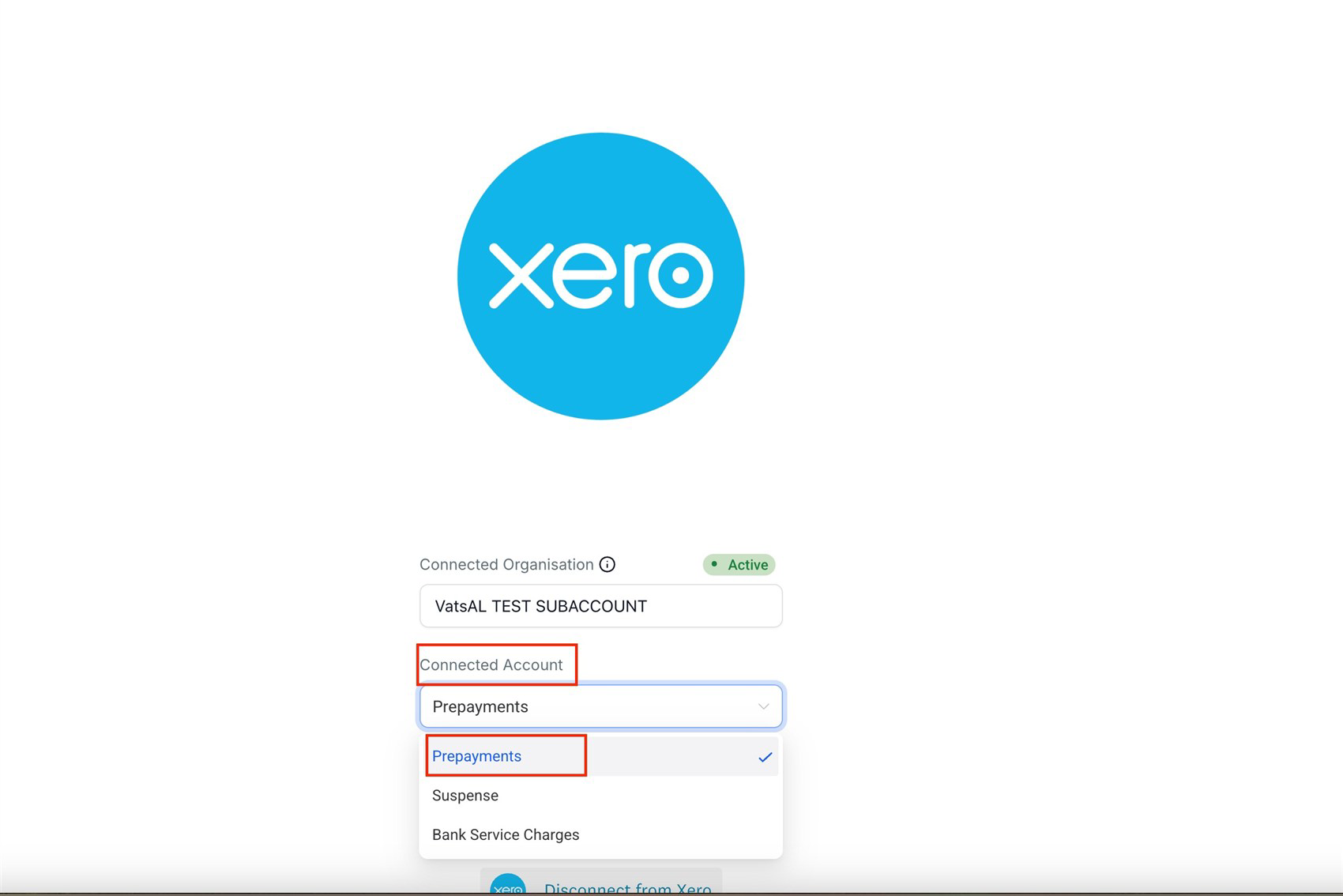
Your Chart of Accounts will now be visible and ready to use in Metanow CRM.
5. How it works
5.1 Contacts import (Xero to Metanow CRM)
On connection, Metanow CRM imports active Xero contacts (core profile details) so your upcoming invoices map to the right contact.
If you later sync an invoice and no imported contact matches, Metanow CRM creates the contact in Xero automatically during the invoice sync.
5.2 Invoice sync (Metanow CRM to Xero)
When you create or send an invoice in Metanow CRM and choose Sync to Xero, Metanow CRM posts an invoice to your connected Xero organisation that includes:
- Contact: the imported or matched Xero contact, or a new Xero contact if none exists.
- Line items: names, quantities, amounts and discounts. Products and items are not created in Xero.
- Taxes: if a mapped tax already exists in Xero, that existing tax rate is applied. If not, Metanow CRM creates the tax rate and uses it for the invoice.
- Currencies: the invoice currency is passed to Xero. If that currency is not enabled, Metanow CRM adds it to your Xero organisation before posting the invoice. Make sure your Xero plan supports multi-currency.
5.3 What is intentionally out of scope
- No receipt syncing: receipt and expense entries (or receipt PDFs) are not synced by this integration.
- No item catalogue sync: Metanow CRM does not create or manage products or items in Xero. Line items stay embedded in the invoice.
5.4 Disconnections
You can disconnect or reconnect Xero at any time under Settings → Integrations → Xero.
BEST PRACTICE
If you use accounting-specific tracking categories or bespoke revenue accounts in Xero, set the default account mapping in the Metanow CRM Xero settings carefully. Avoid mapping bank accounts to line items, to prevent Xero validation errors.
6. Frequently asked questions
Is this a one-way or two-way sync?
One-way. Contacts import from Xero to Metanow CRM for mapping, and invoices sync from Metanow CRM to Xero.
Will Metanow CRM create new contacts in Xero?
Yes. If the invoice’s customer does not match any imported contact, Metanow CRM creates the contact in Xero at sync time.
Do products or items get created in Xero?
No. Line items are posted on the invoice only. Products and items are not created or maintained in Xero.
How are taxes handled?
If the mapped tax rate already exists in Xero, it is used. If it does not exist, Metanow CRM creates the tax rate and applies it to the invoice.
How are currencies handled?
Metanow CRM passes the invoice currency to Xero and adds it to the organisation if it is not already enabled. Make sure your Xero organisation supports multi-currency.
Are receipts synced?
No. Receipt syncing is not included in this integration.
Can I connect multiple Xero organisations to one Metanow CRM account?
Not in this version. One Metanow CRM account connects to one Xero organisation at a time. Agencies can connect each sub-account to its own Xero organisation separately.
Where do I manage the connection?
Go to Settings → Integrations → Xero in Metanow CRM to view the connected organisation name, check the status, and disconnect or reconnect as needed.
I received “Organisation is not subscribed to currency XXX.” What should I do?
This happens when the invoice currency is not enabled in your Xero organisation. Enable multi-currency in Xero and retry, or make sure your organisation allows that currency. Metanow CRM passes and creates currencies as part of the sync once available.
I disconnected. How do I reconnect?
Return to Settings → Integrations → Xero and click Connect to authenticate again and select your organisation.
Will invoices created before connecting Xero sync automatically?
No. Typically, only invoices created after the Xero integration is connected will sync automatically.
Comments